All The Apps I Use To Edit On My Phone

These days we spend more time on our phones than well almost anything else. So it makes sense that we're also using our phones to edit, share, and create stories. I often get asked what I use to edit my photographs (right now it's these presets), how I make custom Instagram stories, tips for a cohesive feed, and how to add vintage vibes to videos. So I'm sharing all of my secrets today--all of my top apps that can help you craft unique and personal stories and photographs right on your phone. All of these are all quite user friendly (I'm definitely not a tech expert!) and free with the option of additional purchases in-app; the free versions of all of these are quite solid and worth checking out/using with no additional investment.
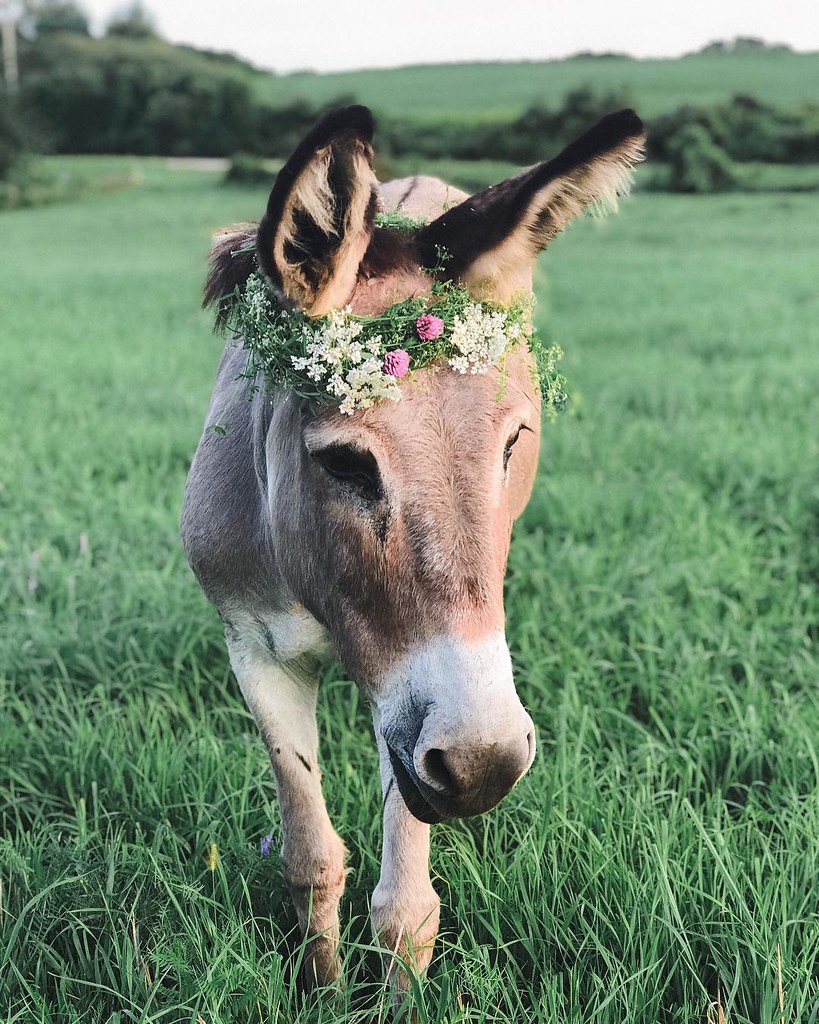
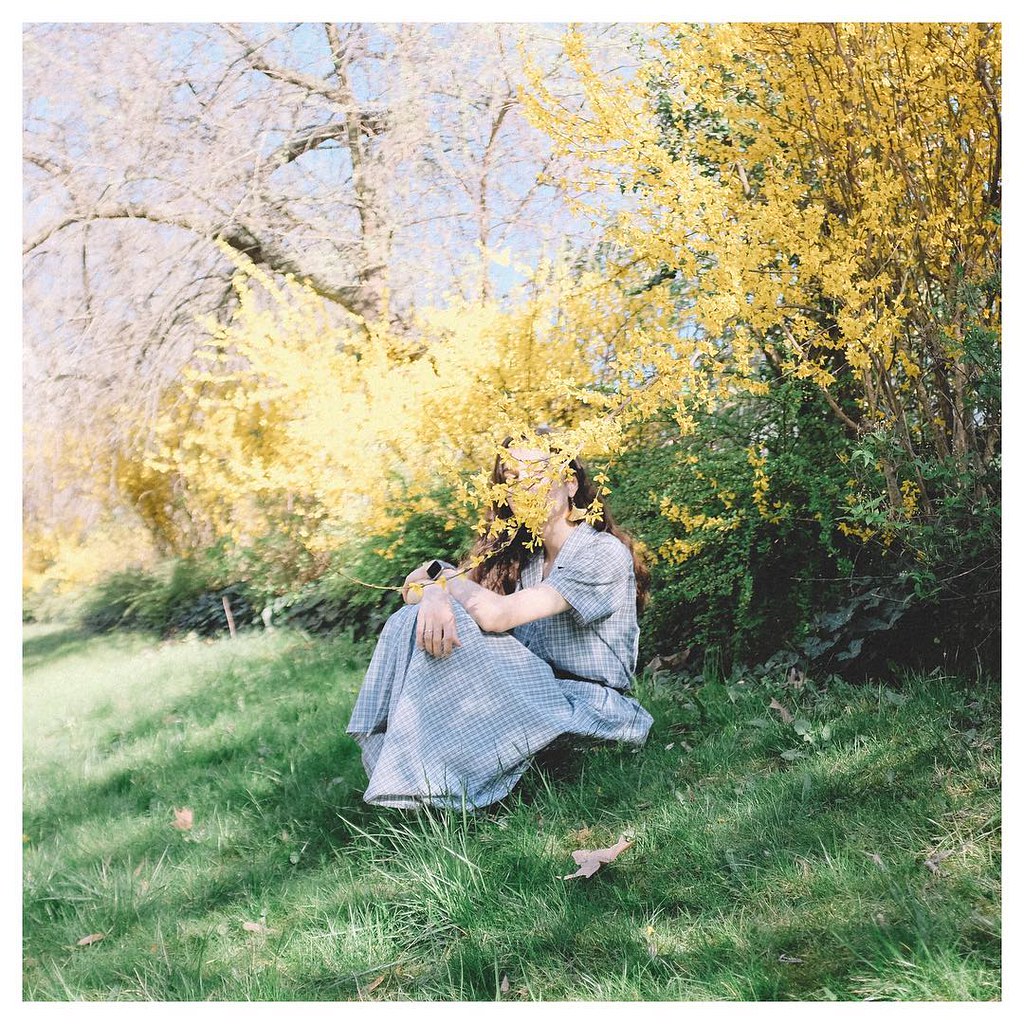
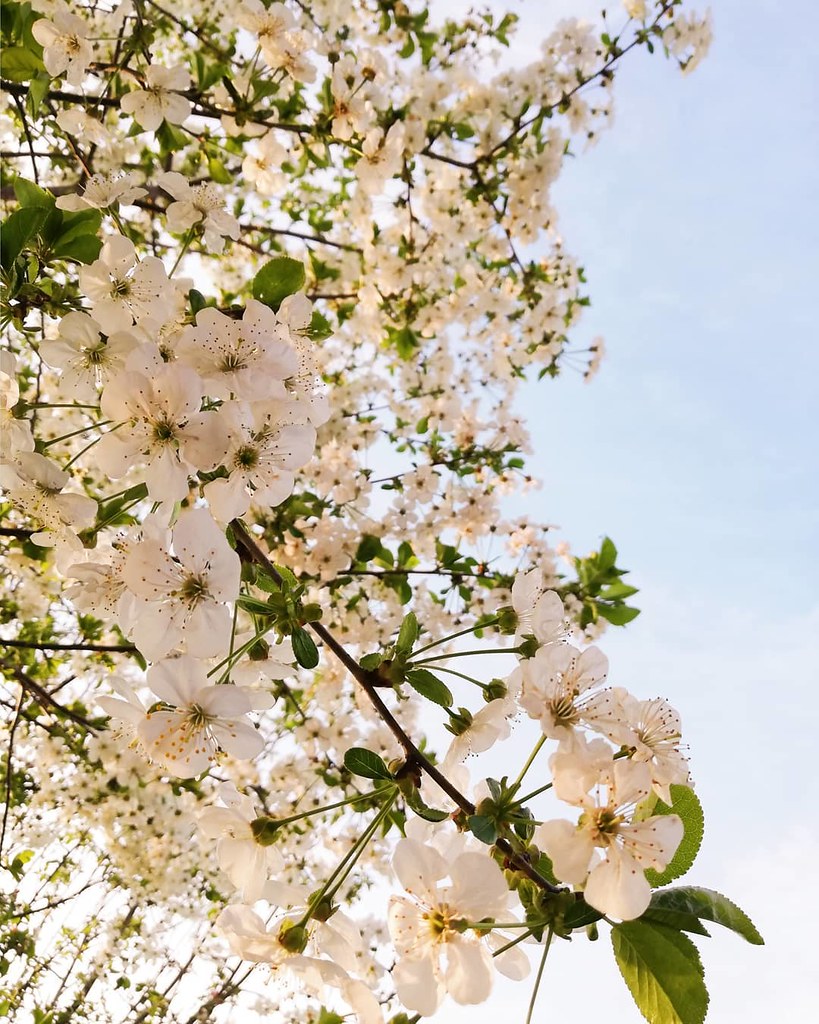
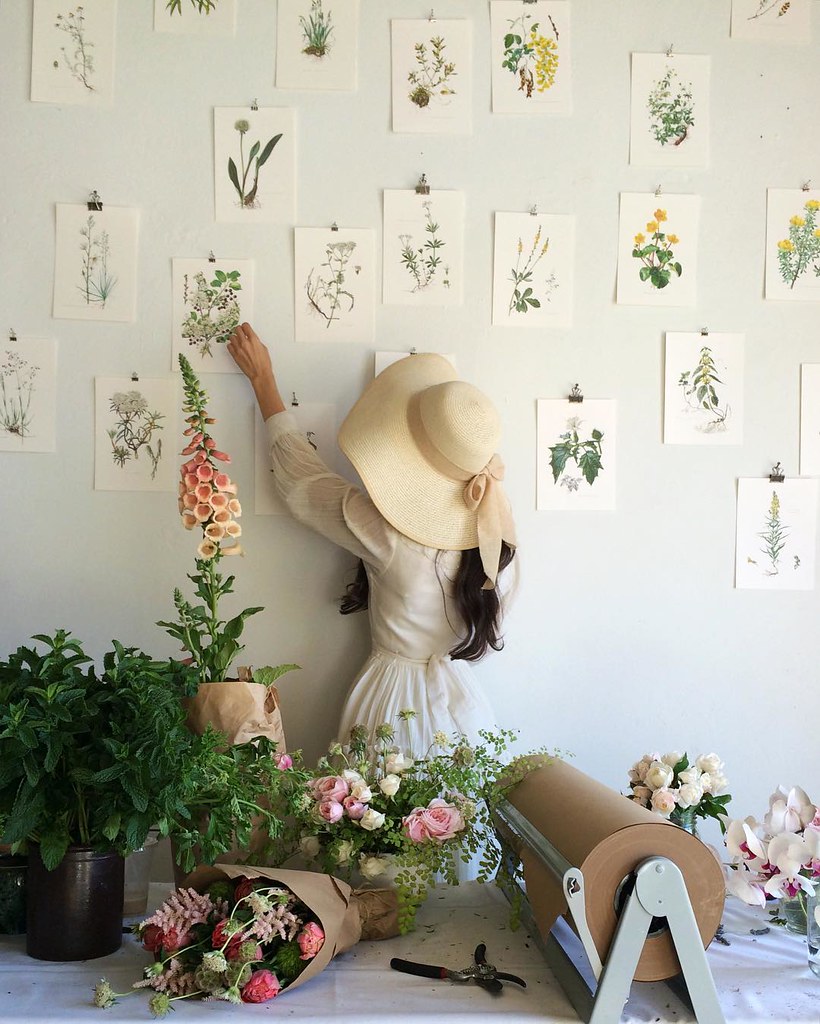
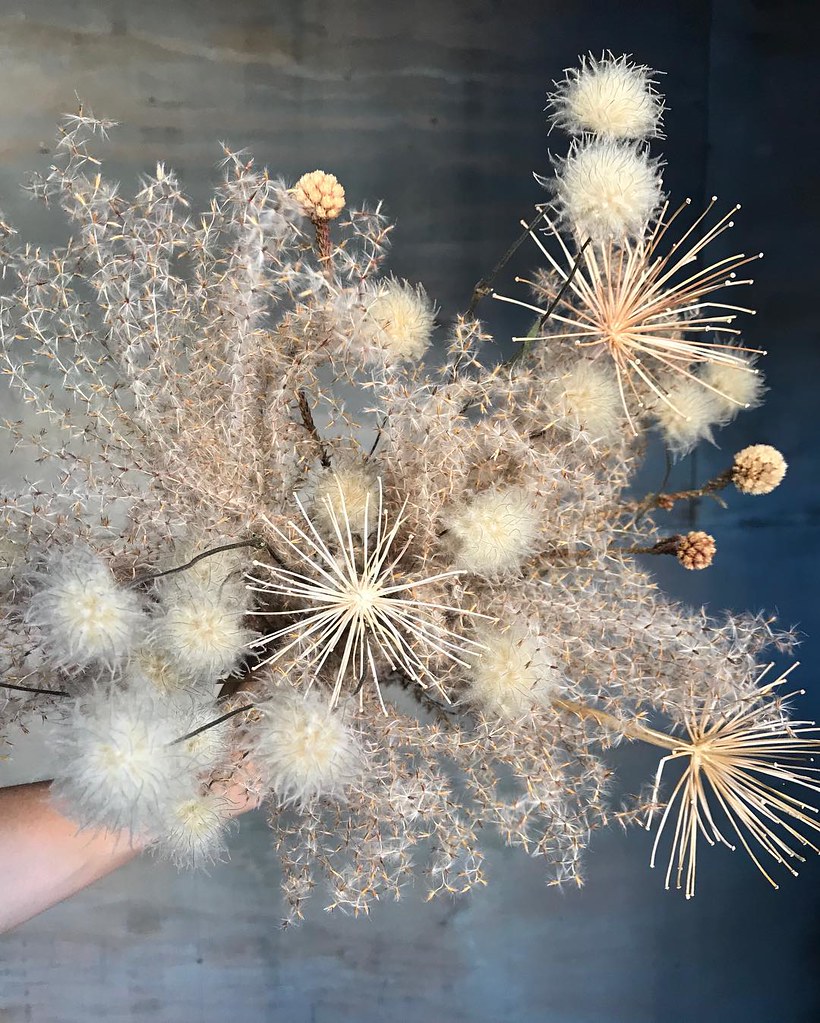
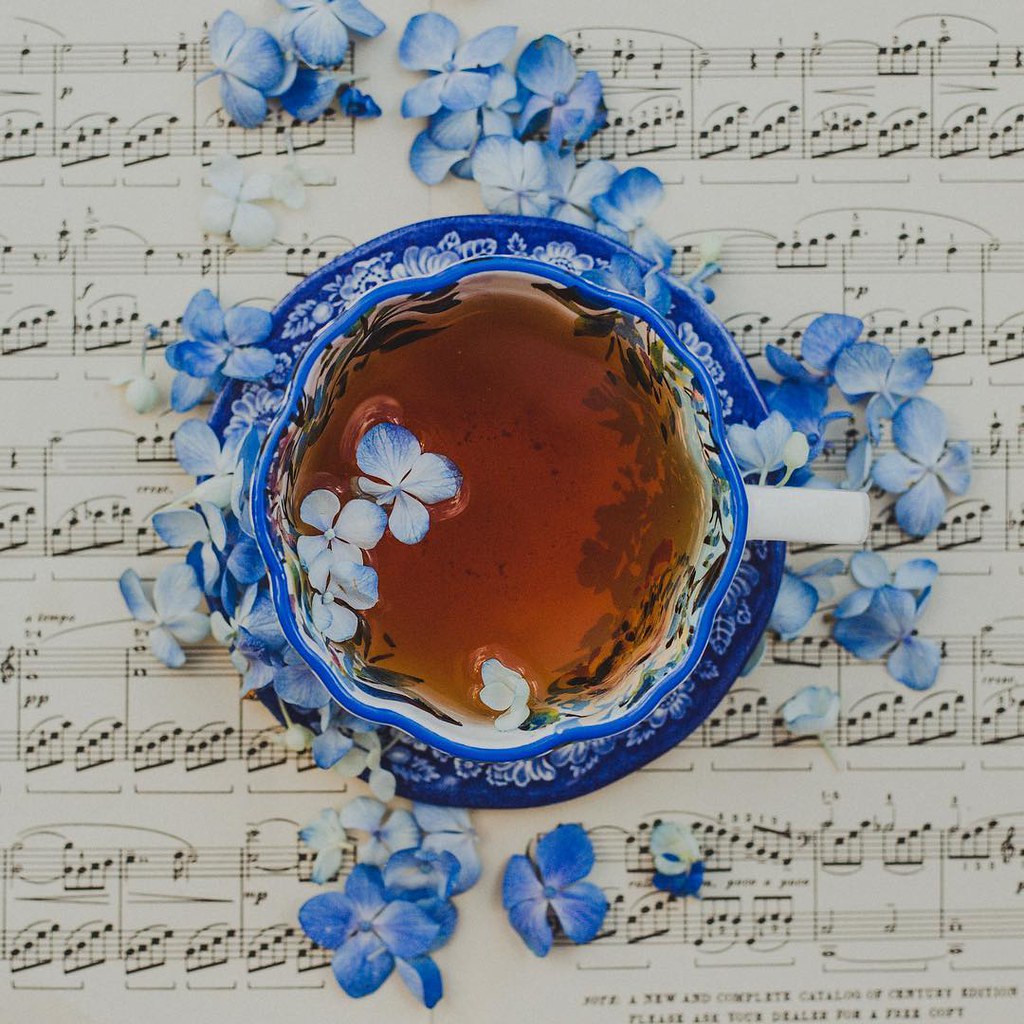
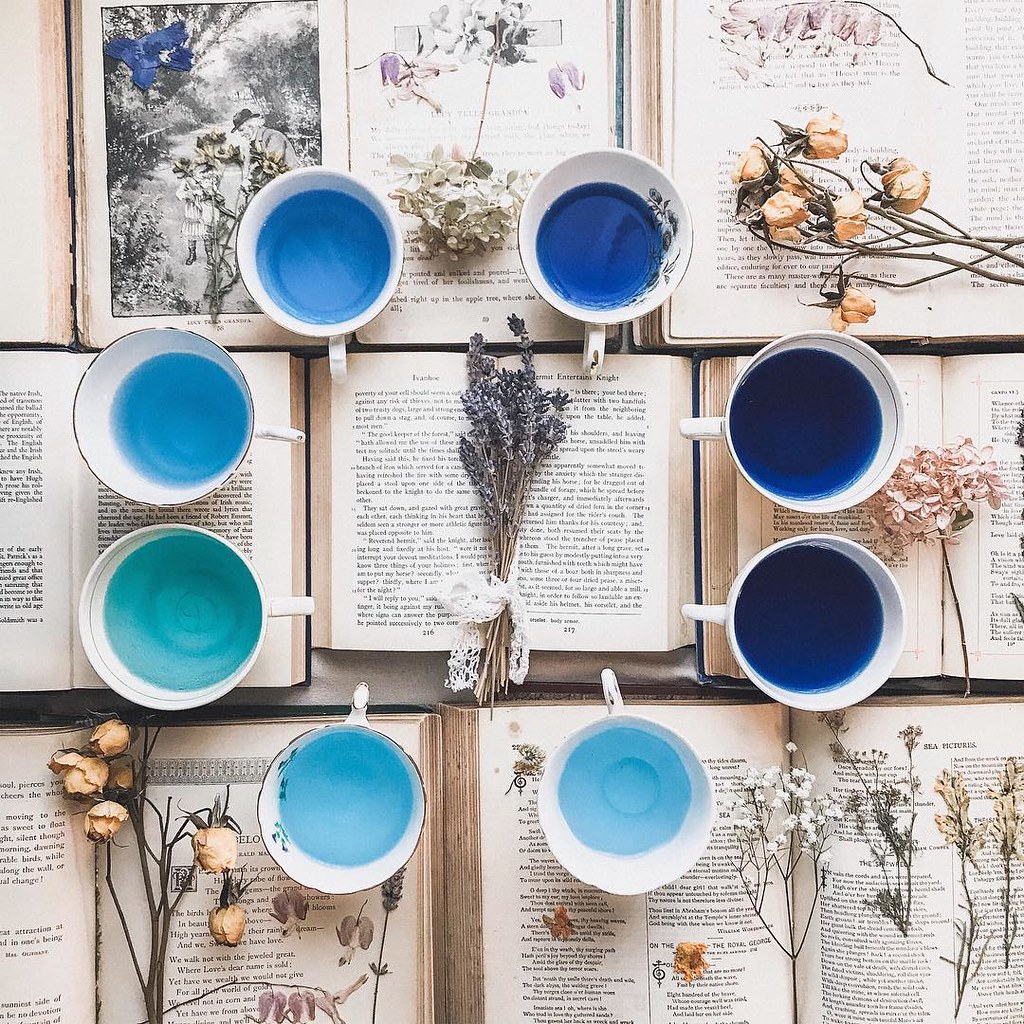
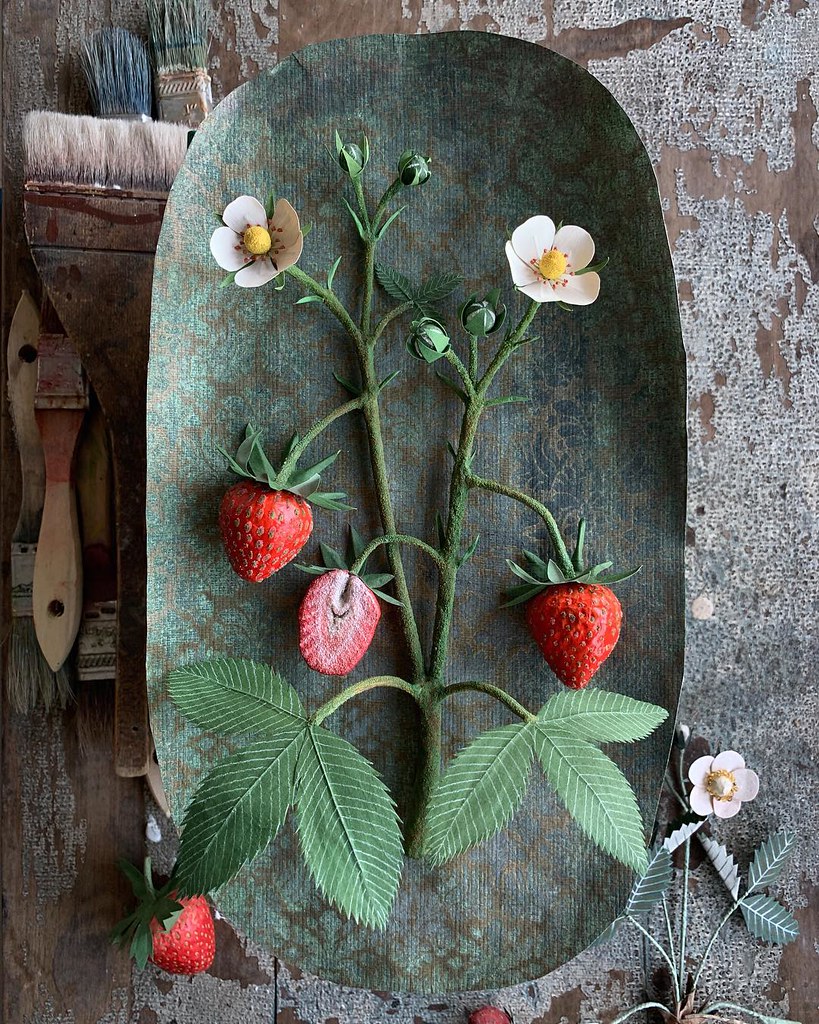
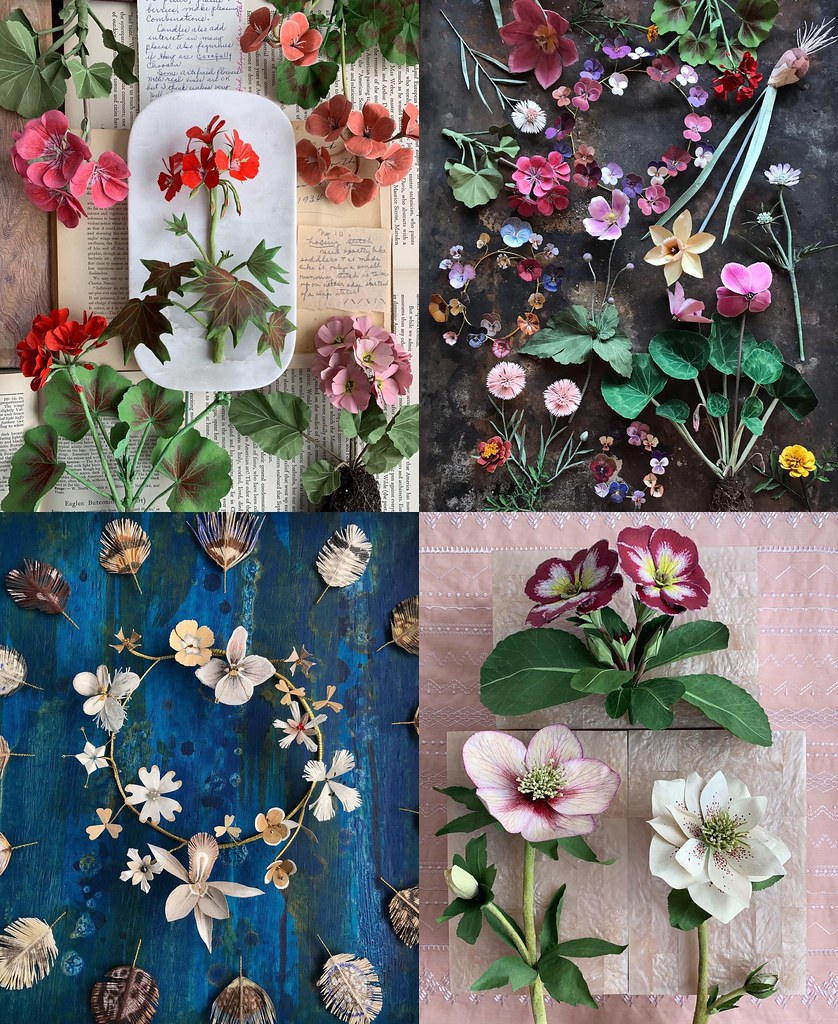
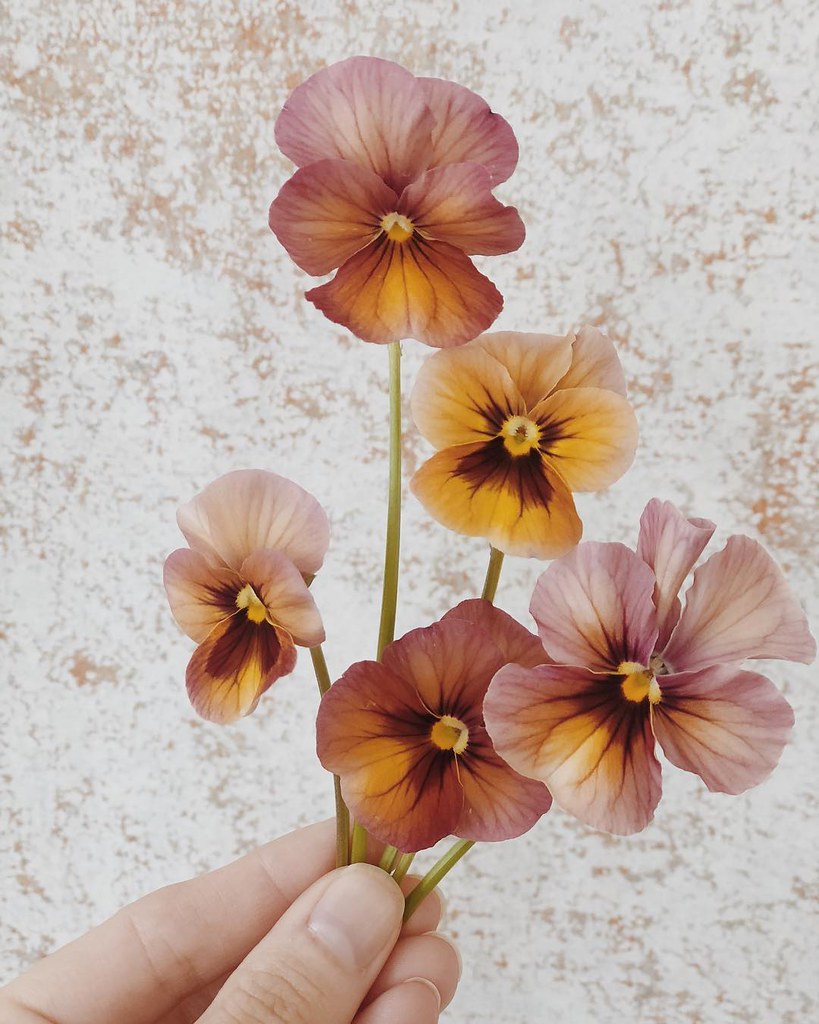
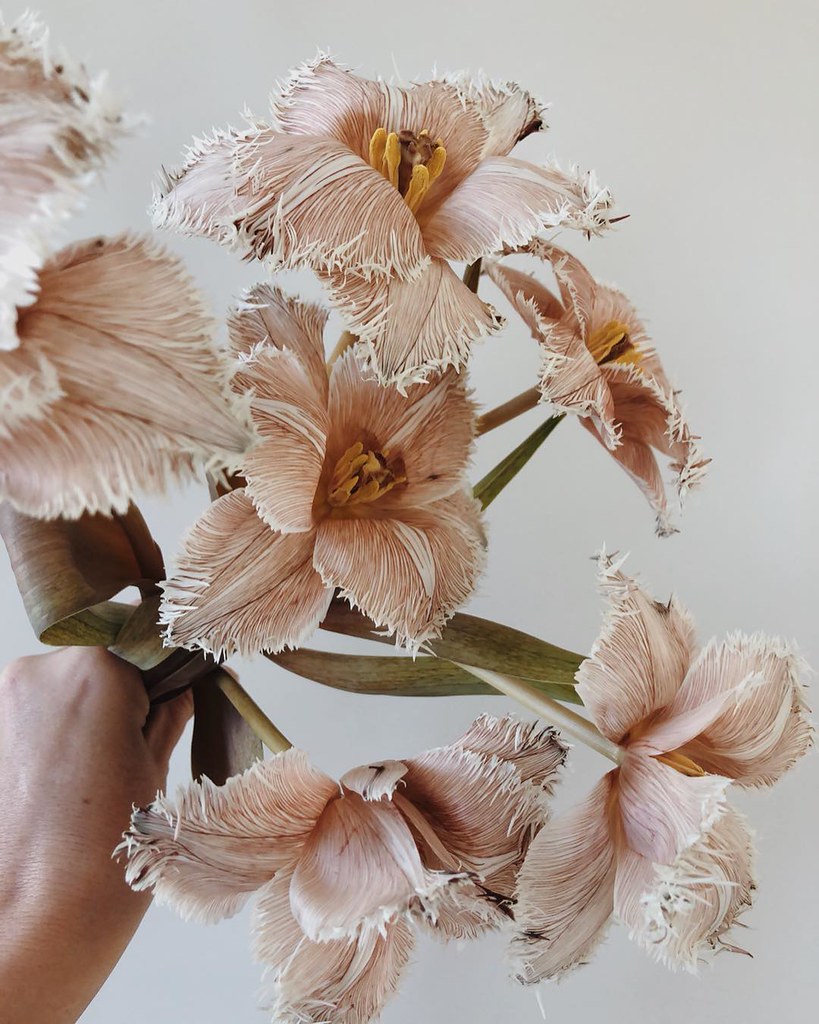
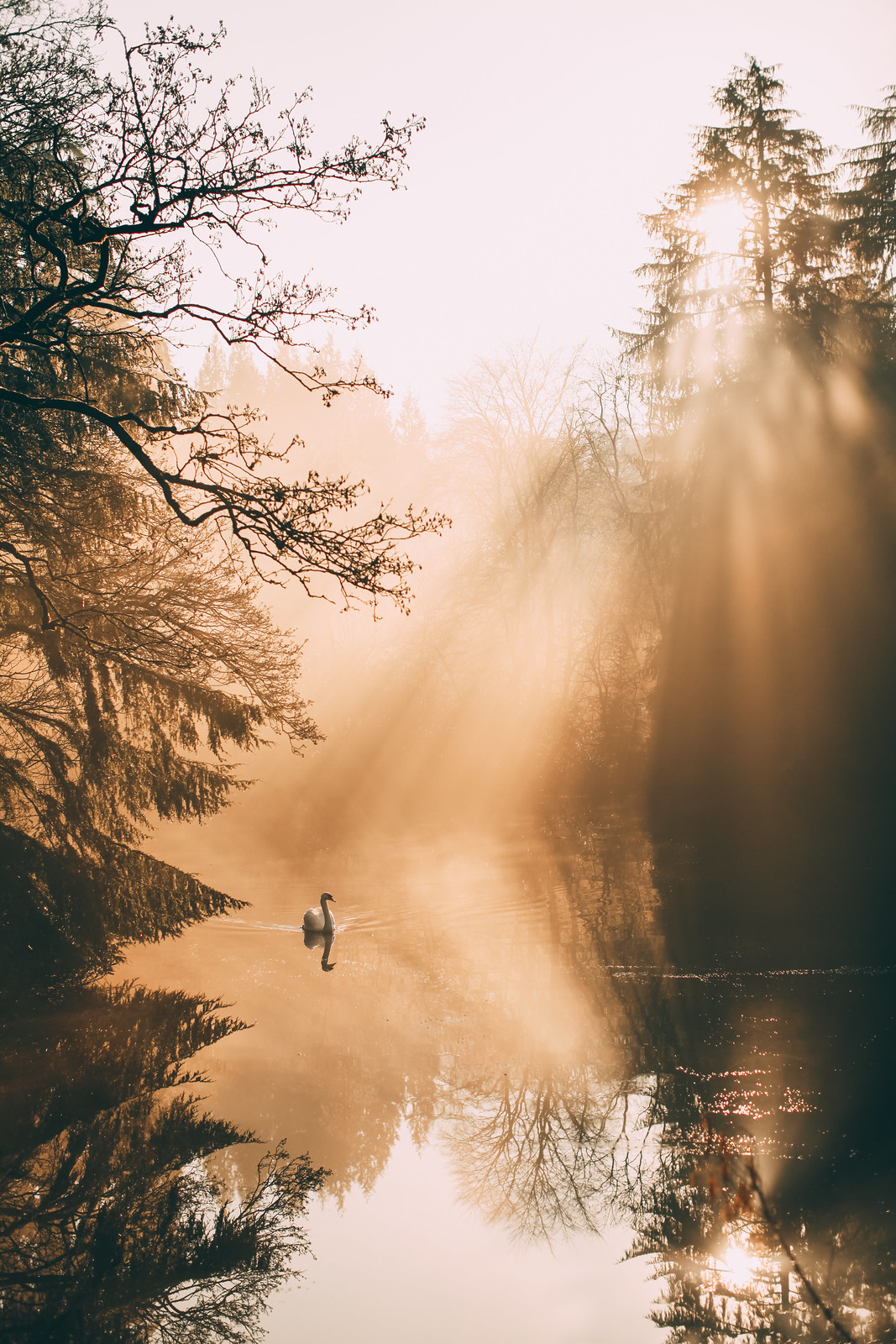
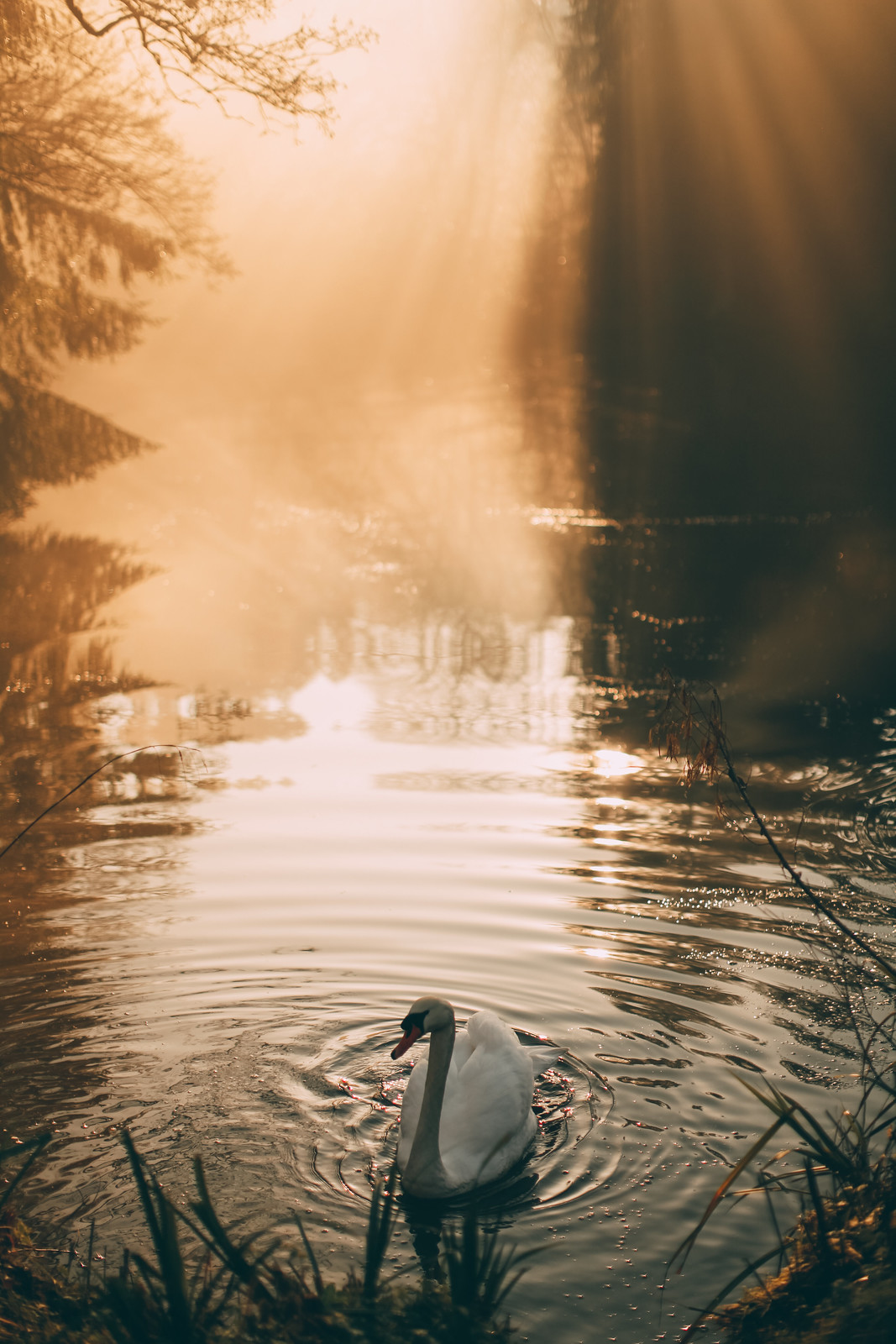
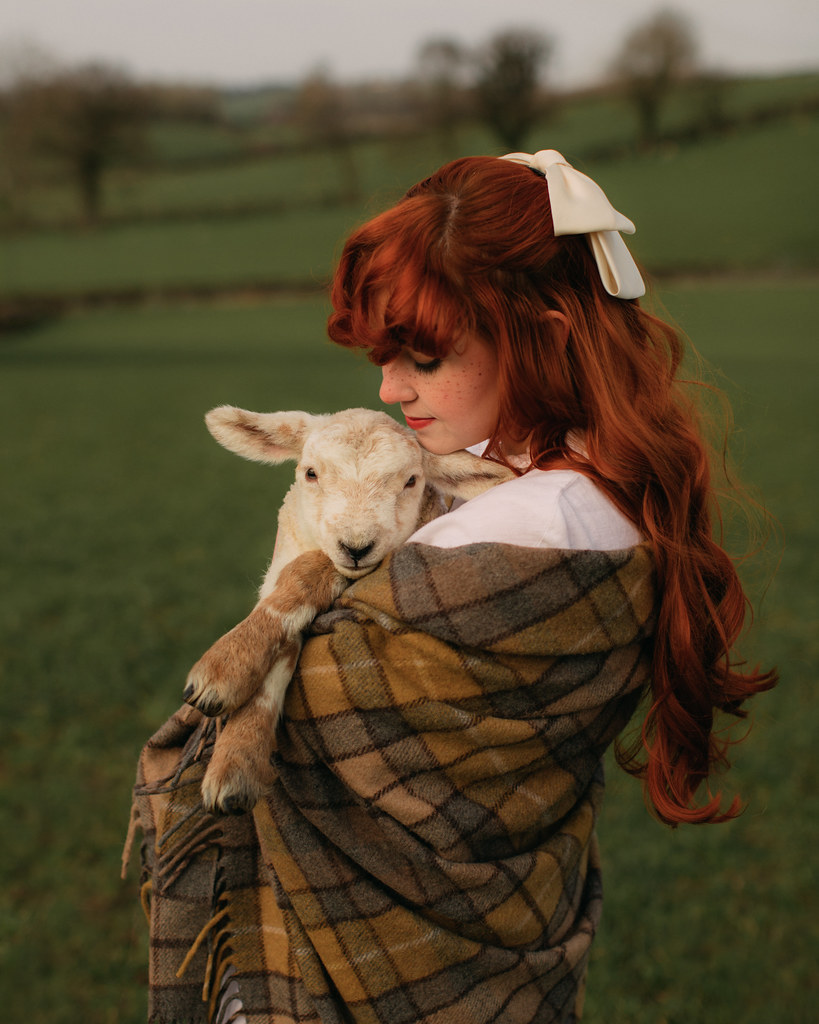
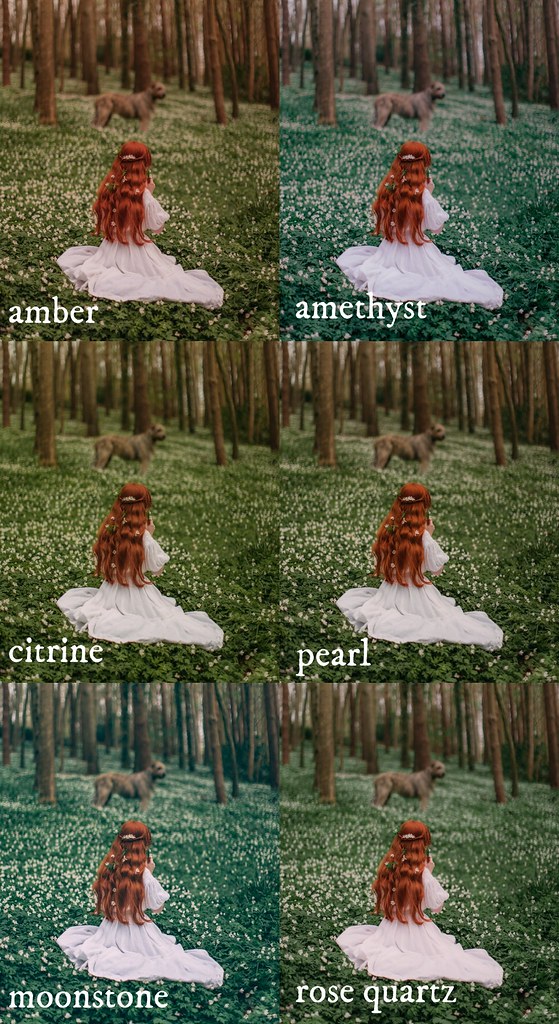
 For Photo Editing: I do most of my photography edits on my computer, but whenever I am editing on the fly I use Lightroom Mobile. It's a very handy, easy-to-use editing app with a lot of substance; I feel like other apps depend on flashy filters rather than serious editing. Lightroom Mobile is really the mobile version of their desktop editing, if you want to control your brightness, highlights, clarity, play with curves, etc, this app does all that. I can even import my presets (the ones I sell) into the app to make for speedier edits (even the free version of this app lets you import presets). Being able to use my presets on my phone is so handy for consistency in my edits across all platforms and helps me maintain my editing style when I don't have access to my computer or want my stories--which I always shoot on my phone--to look like my main photographs, which are shot on my camera. The above pictures are all edited with different presets from my Bloom Pack.
 For Creative Instagram stories: Unfold is the best app for unique Instagram stories! Within this app you can add frames or different affects to your pictures as well as layering fonts on top. My favorite collection of edits in the app is the "Ripped Paper 1" collection that looks like torn pages or folds on old paper. I use it often and always get asked how I add that affect! It's super easy to use and really adds a nice depth to your photographs. You can also build collages in the app. I always bring in already color edited photographs, for me this app is more about editing the layout or framing of a story. Another popular style in the app is a retro film-inspired frame that makes your pictures look like old photobooth or film pictures. The app is free but some of the effects/frames do cost money.
For videos: Filmm app is hands down my favorite video app. It was released in 2019 and it already has so many good updates since then. Now you can add several clips together in the app to combine them seamlessly into one video, in addition to all of the other effects within the app. There's a ton of fun vintage-inspired filters and layering effects you can add to your videos in the app, but what really separates this app from others is the ability to edit video almost exactly like a photograph. You can adjust brightness, saturation, or even the saturation of specific colors. And the app comes with loads of music within it. I use the songs often in my stories and get asked so many questions as to where my music is from! The app is free and offers in-app purchases for further filters and effects.
 For planning my grid: I like my Instagram profile to flow together so one extra step I do is planning my grid out in advance. Click here for a post where I discuss why you might also want a cohesive feed and how to plan one in greater detail. I use Preview app to sync my active Instagram feed and then add in new photographs as I have them to create a sense of balance. I don't try to be too strict with how I post things, but it helps me realize if I'm sharing five pictures of the back of my head all in a row and makes me choose different photographs for more variety and balance.
For Photo Editing: I do most of my photography edits on my computer, but whenever I am editing on the fly I use Lightroom Mobile. It's a very handy, easy-to-use editing app with a lot of substance; I feel like other apps depend on flashy filters rather than serious editing. Lightroom Mobile is really the mobile version of their desktop editing, if you want to control your brightness, highlights, clarity, play with curves, etc, this app does all that. I can even import my presets (the ones I sell) into the app to make for speedier edits (even the free version of this app lets you import presets). Being able to use my presets on my phone is so handy for consistency in my edits across all platforms and helps me maintain my editing style when I don't have access to my computer or want my stories--which I always shoot on my phone--to look like my main photographs, which are shot on my camera. The above pictures are all edited with different presets from my Bloom Pack.
For Creative Instagram stories: Unfold is the best app for unique Instagram stories! Within this app you can add frames or different affects to your pictures as well as layering fonts on top. My favorite collection of edits in the app is the "Ripped Paper 1" collection that looks like torn pages or folds on old paper. I use it often and always get asked how I add that affect! It's super easy to use and really adds a nice depth to your photographs. You can also build collages in the app. I always bring in already color edited photographs, for me this app is more about editing the layout or framing of a story. Another popular style in the app is a retro film-inspired frame that makes your pictures look like old photobooth or film pictures. The app is free but some of the effects/frames do cost money.For videos: Filmm app is hands down my favorite video app. It was released in 2019 and it already has so many good updates since then. Now you can add several clips together in the app to combine them seamlessly into one video, in addition to all of the other effects within the app. There's a ton of fun vintage-inspired filters and layering effects you can add to your videos in the app, but what really separates this app from others is the ability to edit video almost exactly like a photograph. You can adjust brightness, saturation, or even the saturation of specific colors. And the app comes with loads of music within it. I use the songs often in my stories and get asked so many questions as to where my music is from! The app is free and offers in-app purchases for further filters and effects.
For planning my grid: I like my Instagram profile to flow together so one extra step I do is planning my grid out in advance. Click here for a post where I discuss why you might also want a cohesive feed and how to plan one in greater detail. I use Preview app to sync my active Instagram feed and then add in new photographs as I have them to create a sense of balance. I don't try to be too strict with how I post things, but it helps me realize if I'm sharing five pictures of the back of my head all in a row and makes me choose different photographs for more variety and balance.

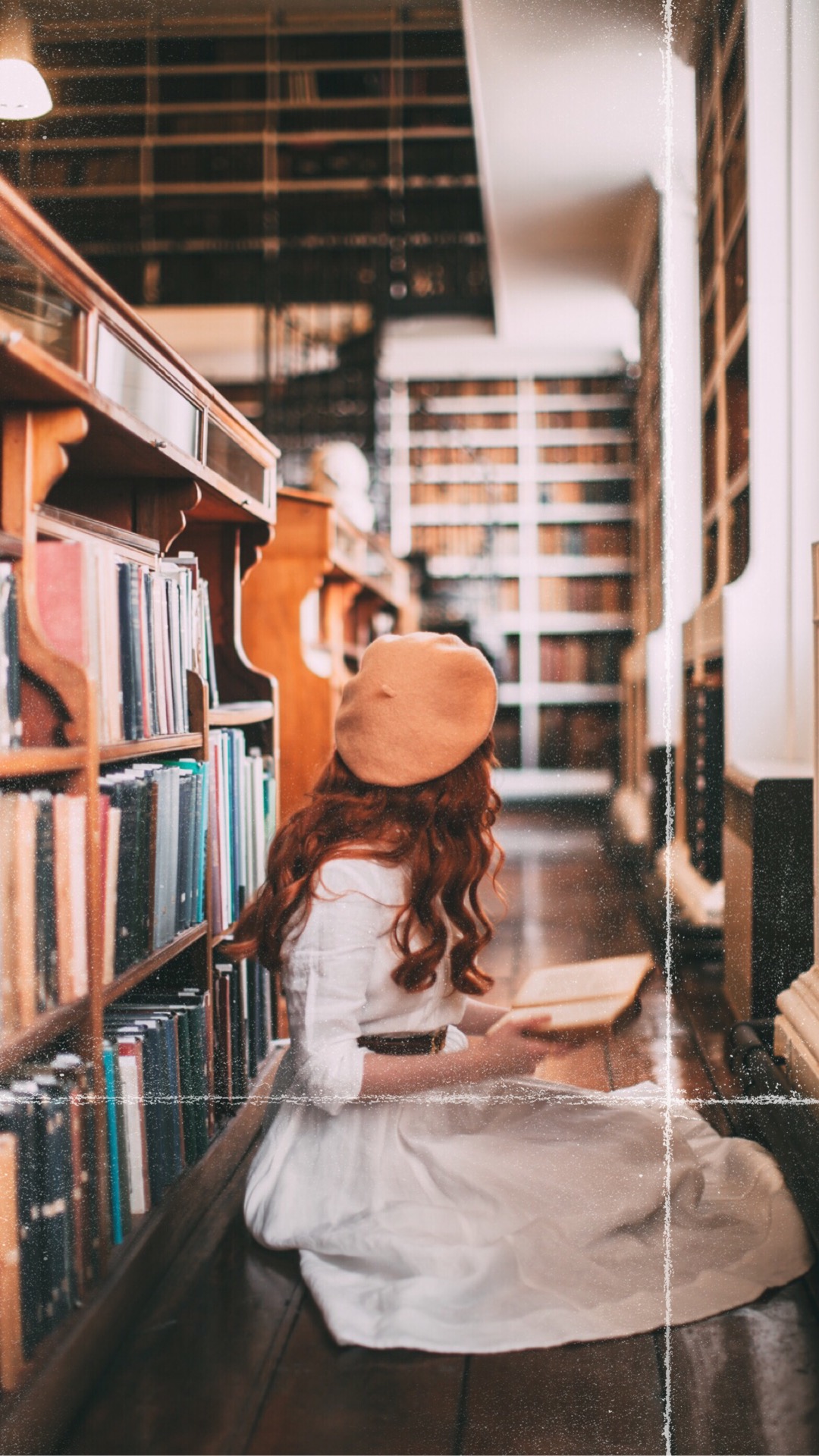
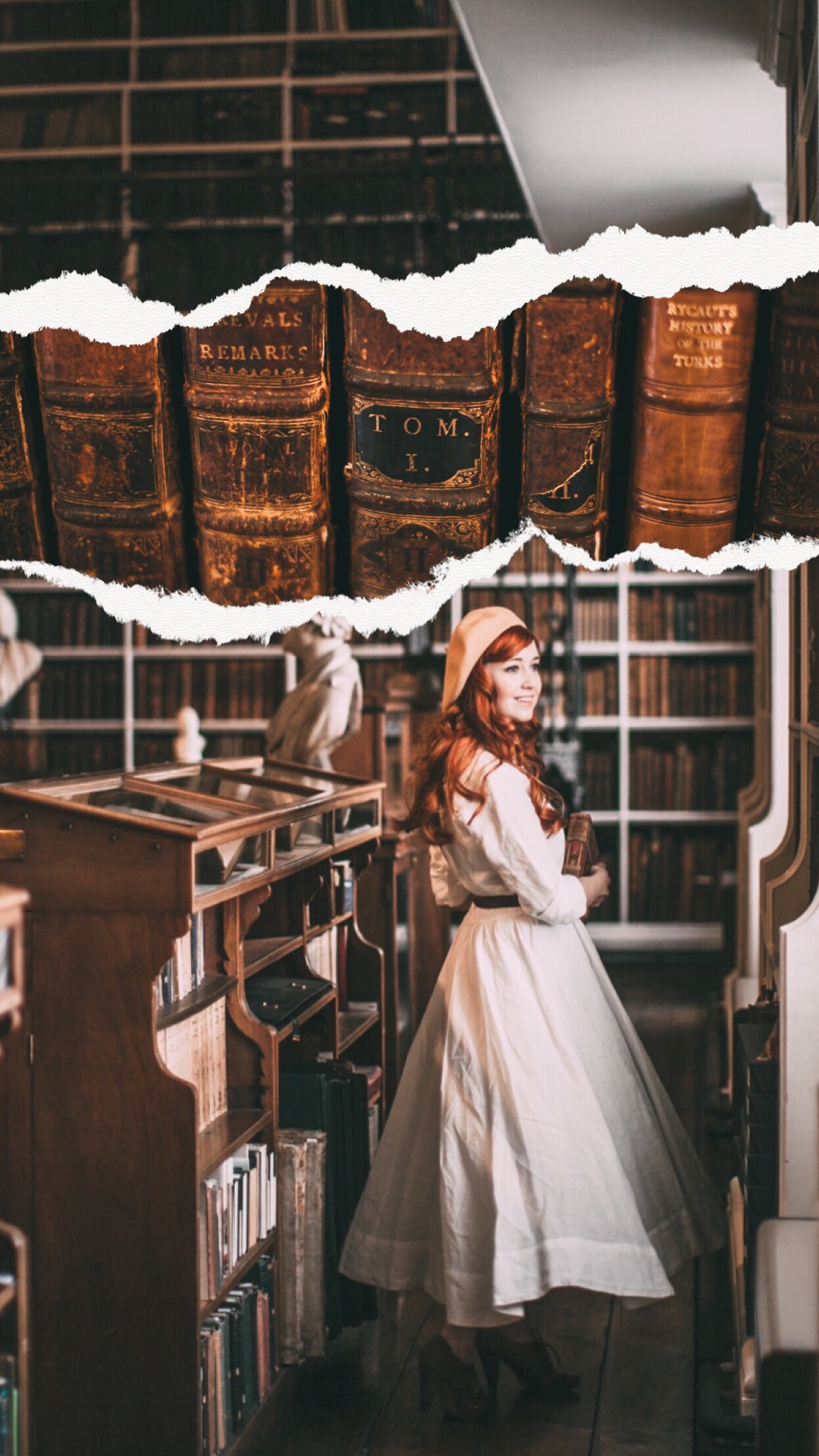 Unfold App: This is one of my most used apps on my phone and the one I think gets me the most questions! Unfold lets you add unique borders to your photographs which makes for eye-catching stories. It also has options for collaging several photographs together in interesting ways which is quite handy as so few editing apps allow you to collage photographs. My favorite frames right now are the ones that give an affect of folded paper or torn edges, but there's also simpler frames with clean lines if you prefer a simpler look. Another popular style that have is a retro film-inspired frame that makes your pictures look like old photobooth or film pictures. The app is free but some of the effects/frames do cost money.
 AColorStory: I don't use AColorStory now as much as I used to since you can only use filters or presets already in the app to edit with, but it's still a very handy tool for the speediest of edits. For example, if I take several pictures in a day I can batch edit them in AColorStory which saves so much time when previously I would have had to edit each one individually. And while you can't bring outside filters into AColorStory you can "build" your own within the app by saving your editing steps. Basically at the end of an edit you have the option of saving all your editing steps, then the next time you bring a picture into the app to edit you can apply those saved steps as a personally designed filter. It also can help you plan your feed if you want a more cohesive look (